Approval Routings in altHR
Modified on Sun, 30 Nov, 2025 at 10:12 PM
TABLE OF CONTENTS
- 1. Overview: What Are Approval Routings?
- 2. Where Approval Routings Apply
- 3. Understanding the Two-Step Approval Routing Setup
- 4. Types of Approval Routing Features in altHR
- 5. Creating General Approval Routings
- 6. Creating Approver Groups
- 7. Applying Approval Routings to Modules
- 8. Summary Table of All Routing Configurations
Approval Routings are a core configuration mechanism in altHR that determine the approval flow for employee transactions—such as Leave Requests, Expense Claims, Travel Requests, and Document Acknowledgements. Properly configuring these routings ensures operational governance, auditability, and compliance with organisational hierarchy.
This article provides a comprehensive guide on understanding, creating, applying, and troubleshooting approval routings across the altHR platform.
1. Overview: What Are Approval Routings?
Approval Routings define who must approve a request before it can be finalised. altHR supports routing logic that mirrors real organisational structures and can be applied to multiple modules.
A routing can be:
Single-Level (e.g., Line Manager)
Multi-Level (e.g., LM → HR → HOD → Finance)
Cross-Company (across grouped entities)
Approver Group Based (multiple approvers; any can approve)
Organisation-Level Based (based on Org Chart from People module)
Why Approval Routings Matter
Ensures employees follow proper governance channels
Reduces manual follow-up
Provides full audit trail
Ensures consistency across HR, Finance, and Operations
Supports multiple business units and grouped entities
2. Where Approval Routings Apply
Approval routings must be configured separately for each module.
| Module | Is Routing Required? | Where to Configure |
|---|---|---|
| Leaves | Yes | Leaves > Settings > Default Approval Routing |
| Expenses | Yes | Expenses > Settings > Default Approval Routing |
| Travel | Yes | Travel > Settings > Default Approval Routing |
| Documents | Optional | Documents > Settings |
Before applying approval logic in these modules, the routing must first be created in:
People > Settings > Approval Routing
3. Understanding the Two-Step Approval Routing Setup
altHR separates routing configuration into two layers:
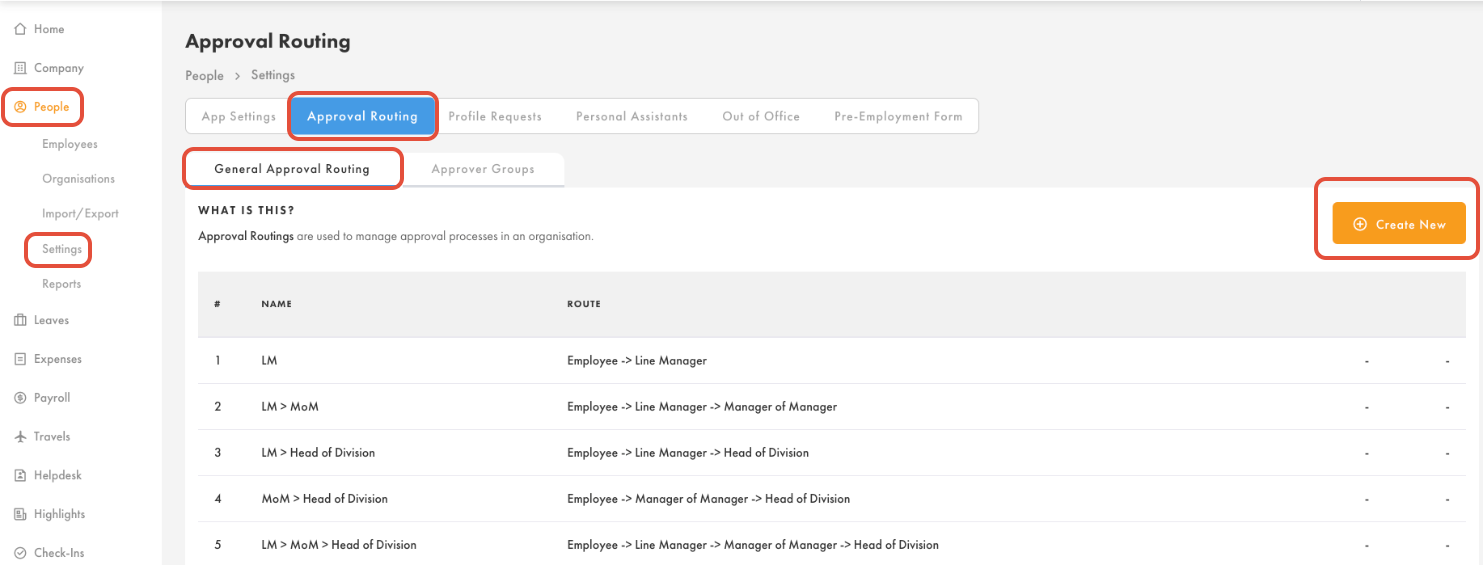
Step 1: Create General Approval Routings (People Module)
This is where you define all possible approval flows.
They act as reusable templates.
These routings are NOT active yet.
Step 2: Assign the Routing in Each Module
After creating a routing, you must apply it at module level:
Leaves > Default Approval Routing
Expenses > Default Approval Routing
Travel > Default Approval Routing
Only after this step does the routing become active.
4. Types of Approval Routing Features in altHR
altHR supports several advanced routing features to suit different organisational models.
4.1 General Approval Routings
General approval routings are the base routing structures containing:
- Up to 5 sequential approval levels
- Line Manager–based routing
- Direct approver selection (employee name)
- Approver Group options
- Cross-company approver selection (if enabled)
Each level must approve before the request moves to the next level.
Example:
- Line Manager
- Head of Department
- HR
- Finance Approver
- CEO
4.2 Cross Company Approval Routing
This feature is available for organisations using the Grouped Companies structure.
Use Cases:
- Group HR managing approvals for multiple subsidiaries
- Shared services model
- Regional managers approving requests across entities
Behaviour:
When toggled ON, the system allows selecting approvers from other grouped companies instead of restricting you to the current company’s users.
4.3 Approver Groups
Approver Groups allow you to assign a group of approvers instead of a single person.
Behaviour:
- Only one member needs to approve/reject
- Approval log displays the Group Name, not the individual
- Common in Finance, HR, or Operations where multiple approvers share workload
Examples:
- Finance Team
- HR Reviews Team
- Branch Managers
- Project Management Office (PMO)
Approver Groups can only be used after being created in People > Approver Groups.
5. Creating General Approval Routings
Follow these steps carefully to avoid routing errors later.
Step-by-Step Guide
1. Navigate to People Module
Go to People > Settings > Approval Routing
2. Under "General Approval Routing" Click “Create New”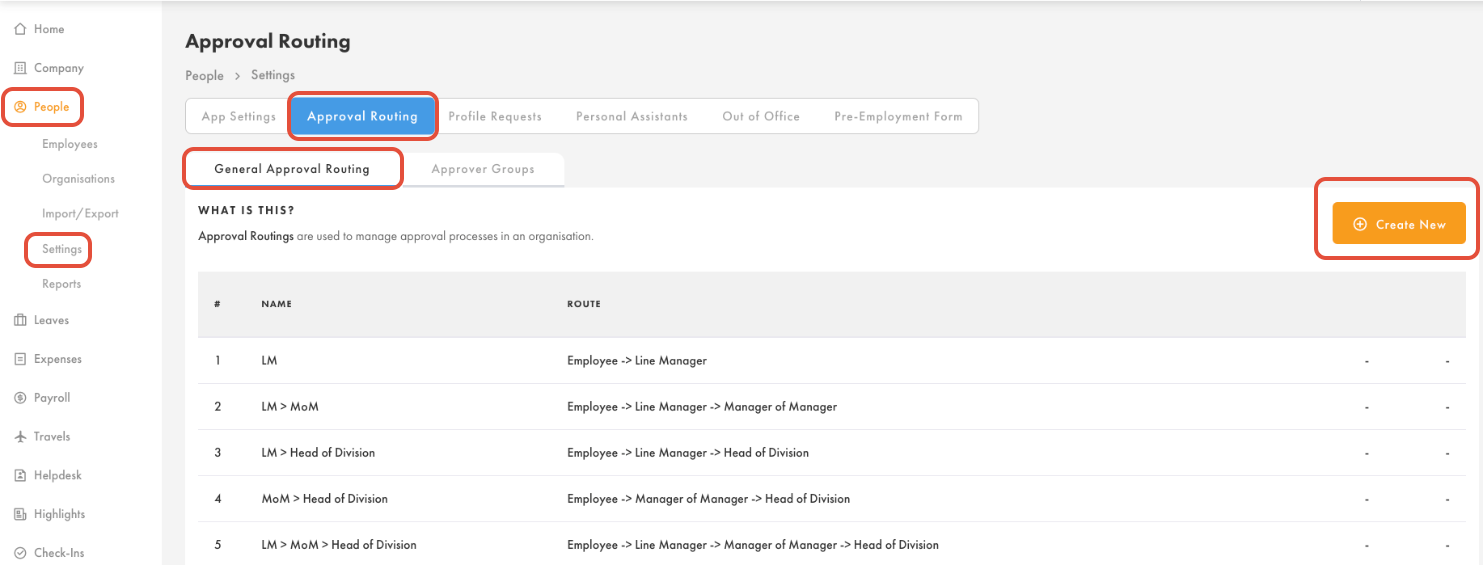
3. Configure Cross-Company Toggle (If Required)
- OFF = approvers from same company only
- ON = approvers from any company in the grouped structure
Ignore this if you dont have group company configure in altHR
4. Select Level 1 Approver
You may select:
- Line Manager
- Specific employee
- Approver Group
- Functional Head (if configured)
5. Add Additional Levels
Click + to add Level 2, Level 3, up to Level 5.
6. Finalise the Routing
Click Confirm.
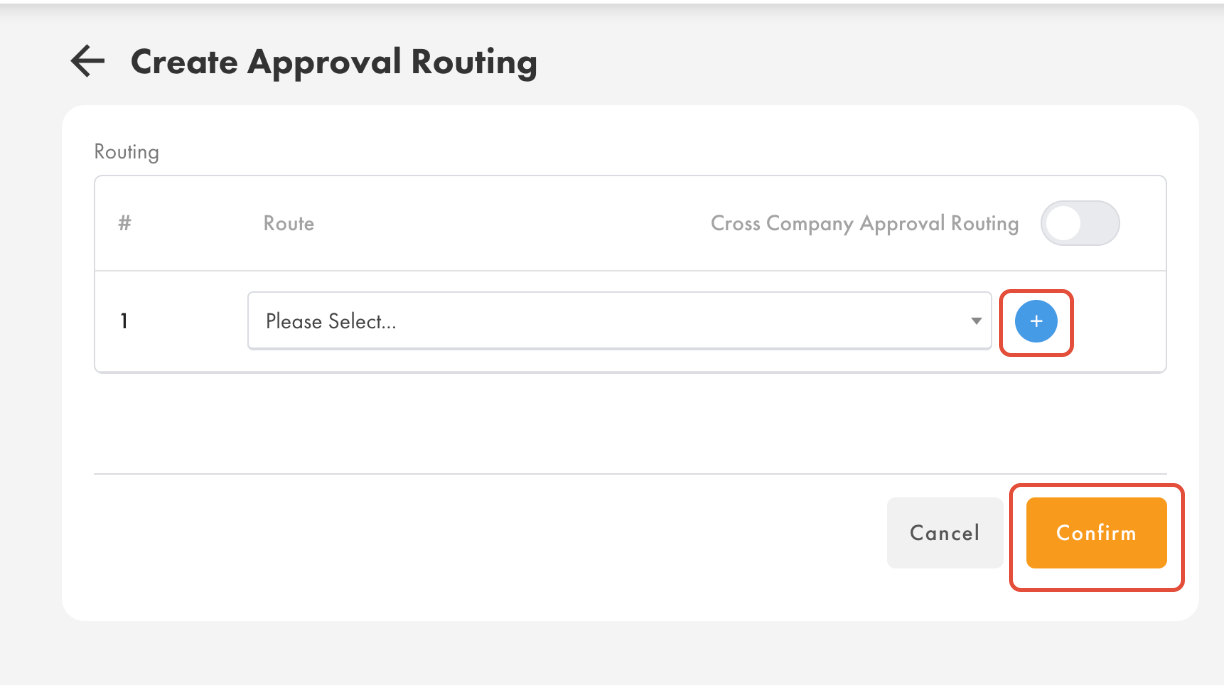
Your routing template is now created and available for assignment.
6. Creating Approver Groups
Approver Groups are essential when approval responsibility is shared across a team.
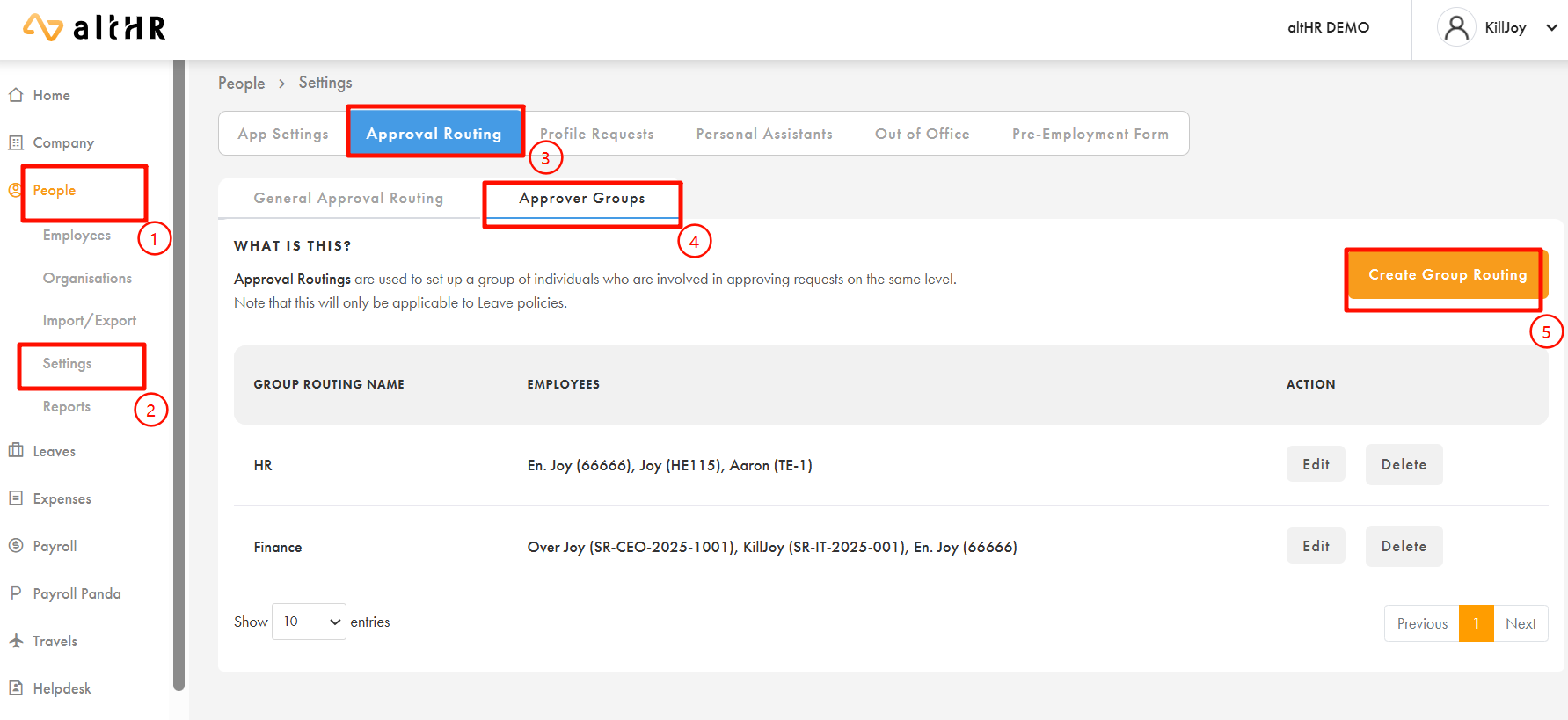
Steps to Create an Approver Group
Go to People > Settings
Select Approver Groups
Click Create Group Routing
Enter a Group Name
e.g., Finance Team, HR Reviewers, Admin Approvers
Add all relevant employees
Click Confirm
You can now assign this group as an approver in any approval routing.
7. Applying Approval Routings to Modules
Once the general routing is created, it must be assigned at module-level.
7.1 Applying Routing to Leaves
Go to Leaves > Settings > Default Approval Routing
Click Create New Approval Routing
Select:
Organisation(s)
Employee(s)
Contract type(s)
Choose a General Approval Routing from the dropdown
Click Confirm
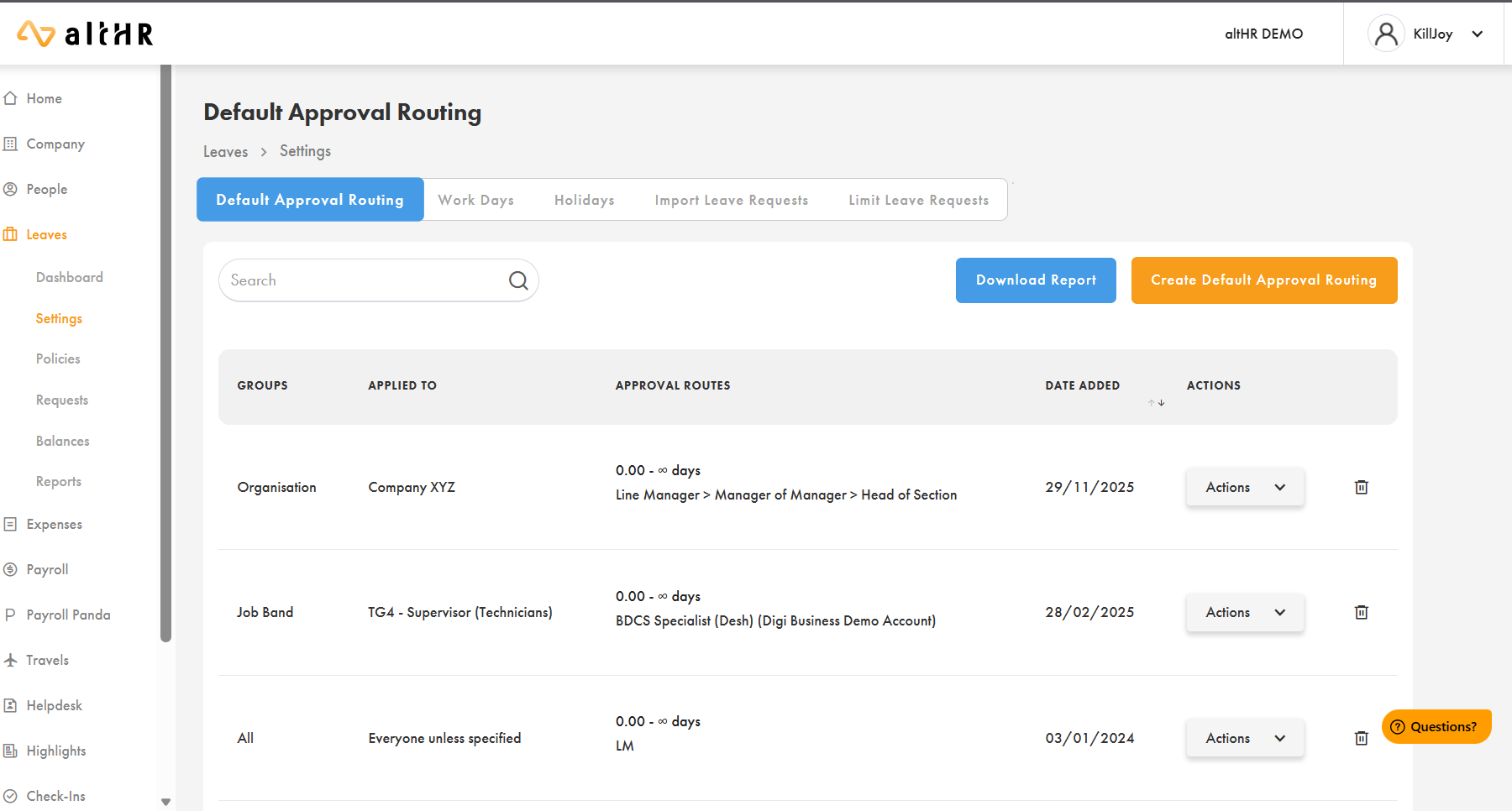
For more information, refer to this How to Configure Default Approval Routings in Leaves
7.2 Applying Routing to Expenses
Go to Expenses > Settings
Select Default Approval Routing
Click Create New Approval Routing
Select organisation/employee scope
Choose your General Approval Routing
Confirm
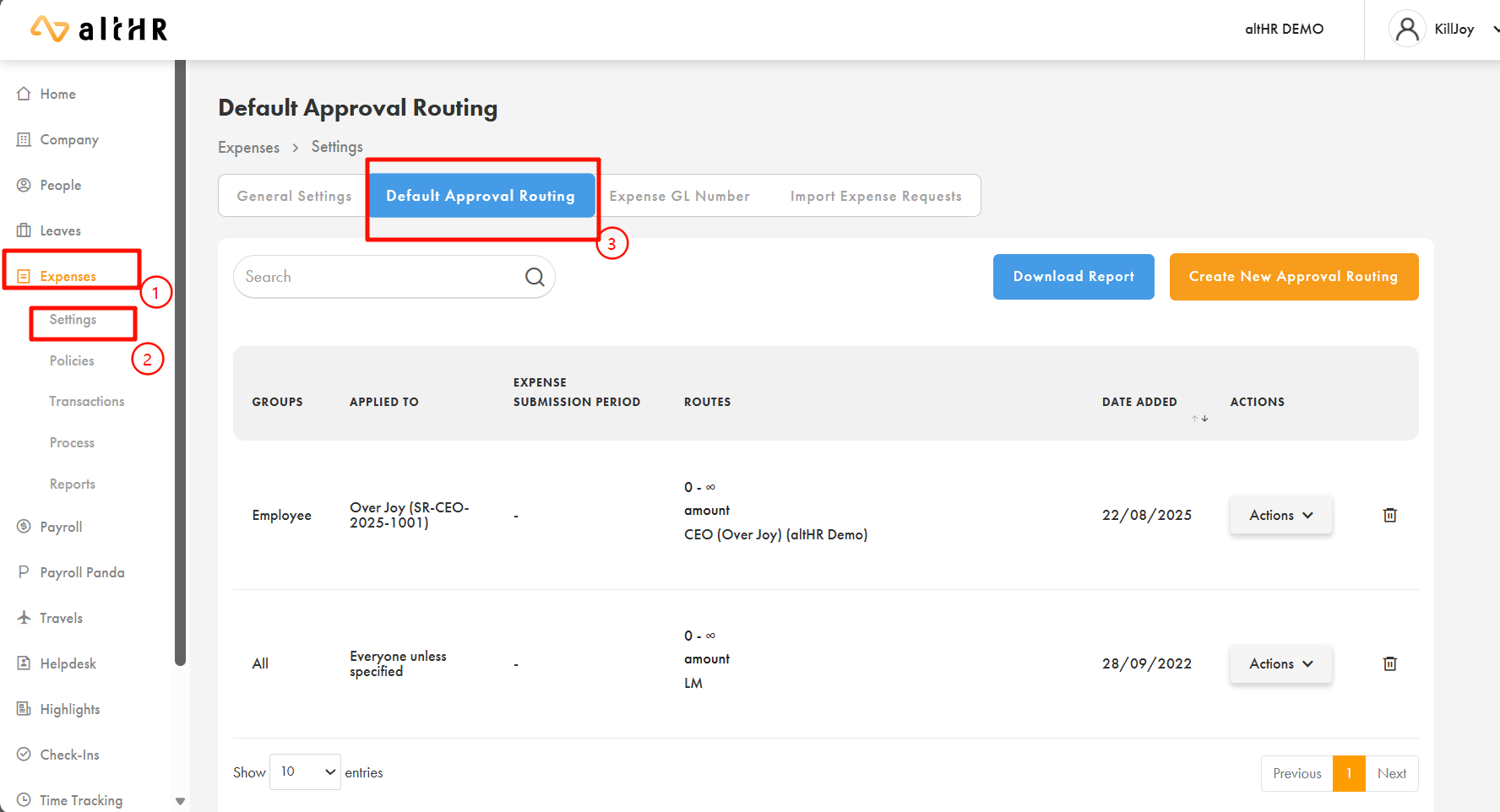
For more information, please refer to How to Configure Default Approval Routings in Expenses?
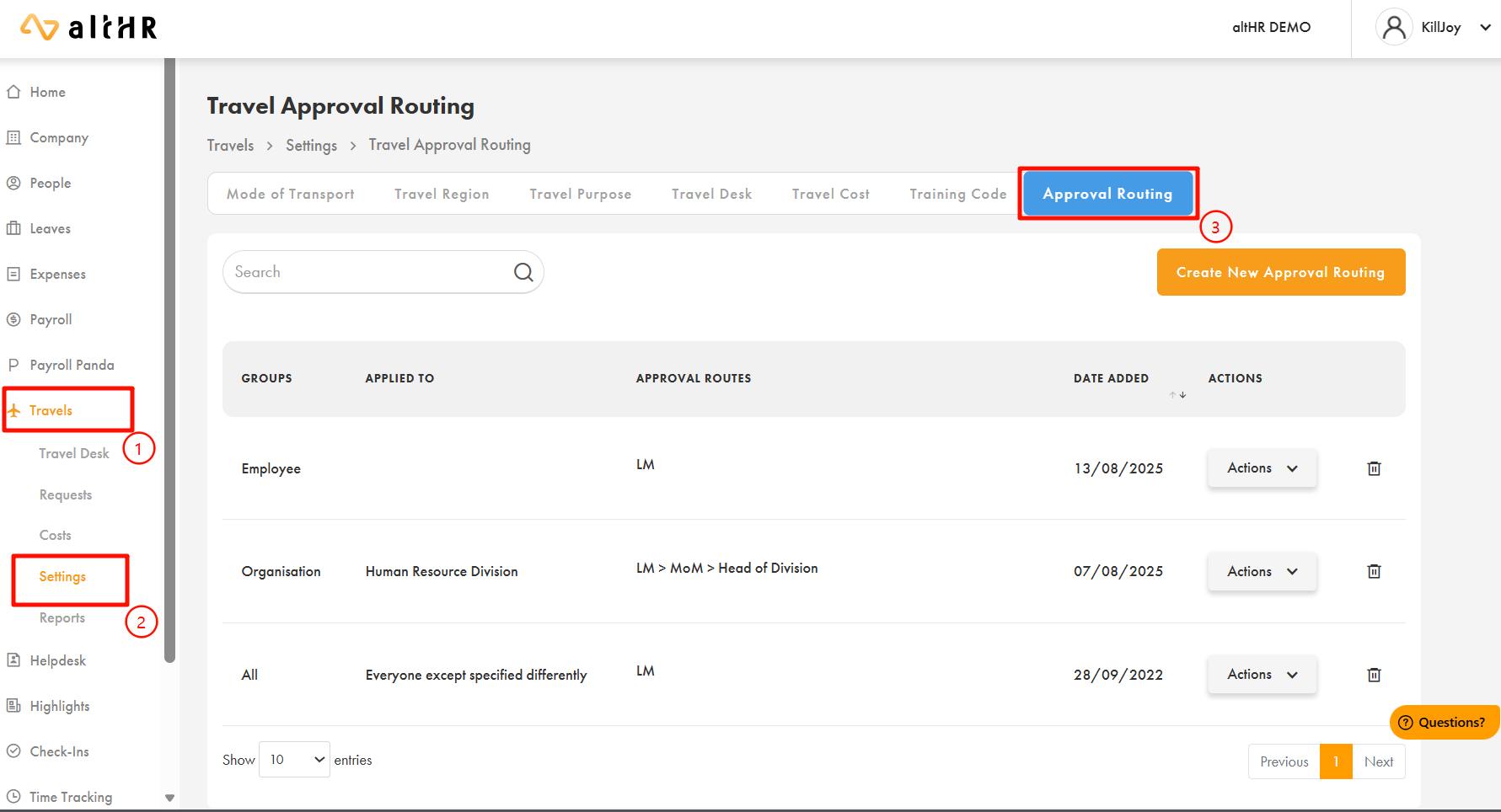
7.3 Applying Routing to Travel
Go to Travel > Settings
Select Approval Routing tab
Create new routing
Select organisations or employees
Choose routing template
Confirm
8. Summary Table of All Routing Configurations
| Configuration | Location | Purpose | |
|---|---|---|---|
| General Approval Routing | People > Settings > Approval Routing | Create approval flow template | Approval Routings in altHR |
| Cross Company Routing | People > Settings > Approval Routing | Enable cross-company approvers | Cross Company Approval Routing |
| Approver Groups | People > Settings > Approver Groups | Allow pooled approval | How to Create Group Approval Routing |
| Organisation Chart | People > Organisation | Influences LM-based routing | How to Manage Organisations |
Was this article helpful?
That’s Great!
Thank you for your feedback
Sorry! We couldn't be helpful
Thank you for your feedback
Feedback sent
We appreciate your effort and will try to fix the article