TABLE OF CONTENTS
TABLE OF CONTENTS
The Organisations sub-module is used to display and manage your company's Organisational Chart.
"Organisation" is an umbrella term for the different departments and teams within your company's structure — often referred to as Divisions, Departments, Sections, Teams, Locations, or Stores. Employees assigned to an organisation are considered its team members.
The 4 Components of an Organisation Chart
Building your organisation chart works much like building a house. Each component must be in place before you move to the next:
| Component | Think of it as… | What it does |
|---|---|---|
| Structure | The floors of the house | Defines how many levels your chart will have. This must be built first. |
| Organisations | The rooms | Separates employees by function — each room has its own theme. |
| Positions | The beds in each room | Every person needs a bed. An employee cannot be moved into an organisation without an available position. |
| Employees | The people moving in | Ensure the structure, organisations, and positions are set up correctly before adding them. |
This article covers how to manage organisations that have already been created.
To set up organisations for the first time, read: How do Organisations Work?
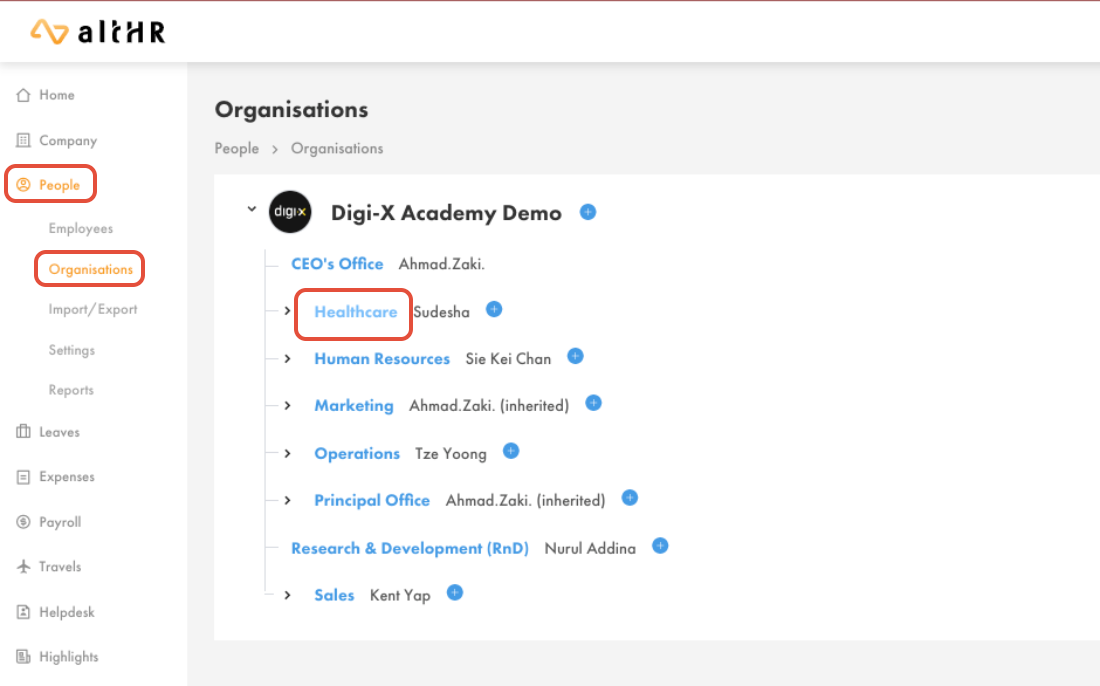
How to Manage Organisations
- On the left-hand panel of your admin dashboard, click People > Organisations
- Select the Organisation you wish to view
From here, admins can manage the Organisation Profile, view Organisation Members, and manage Positions within the organisation.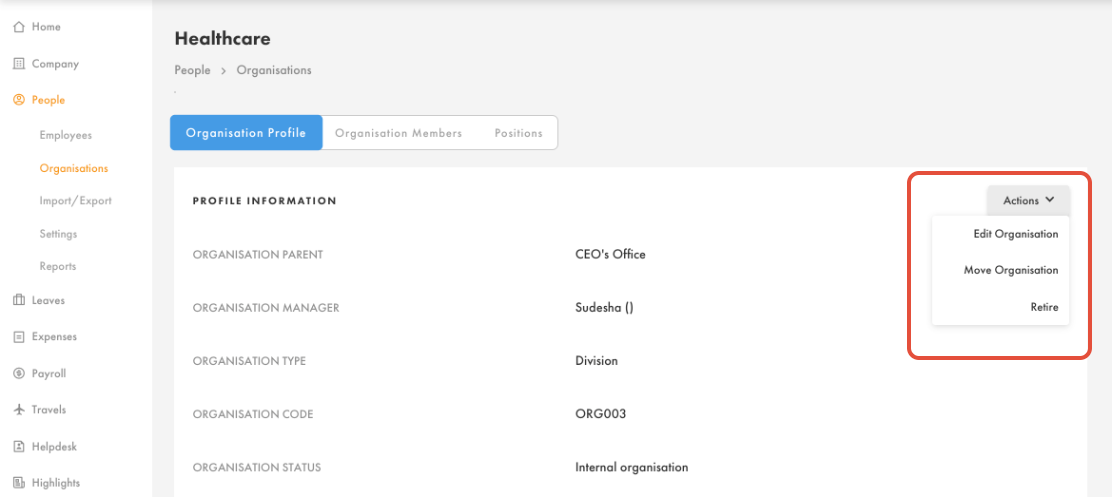
1. Manage Organisation
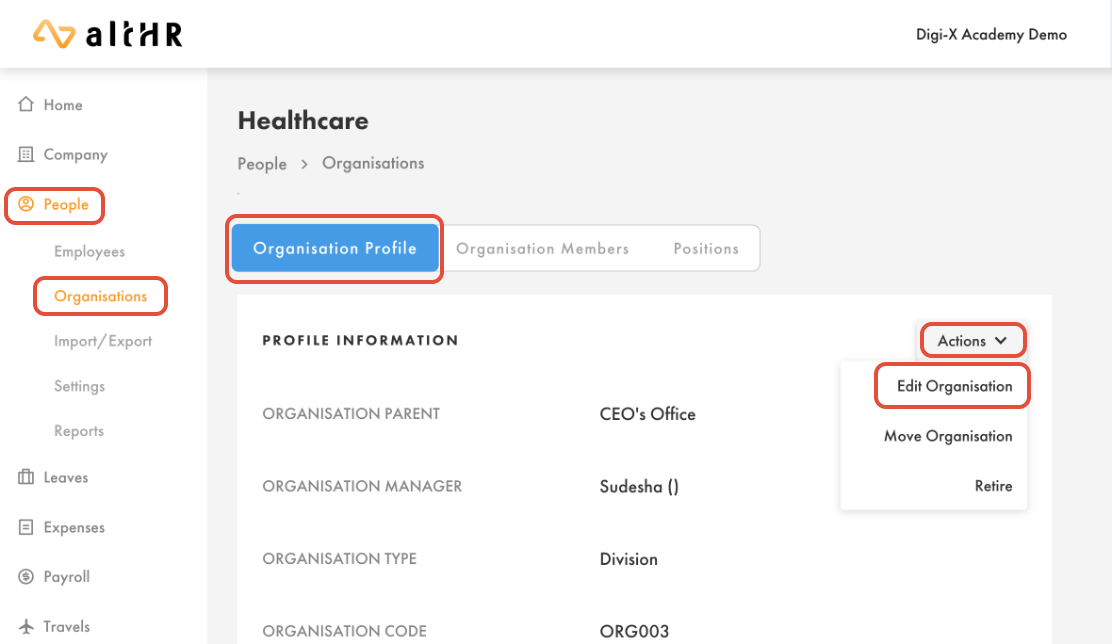
a) Edit Organisation
Select Edit Organisation
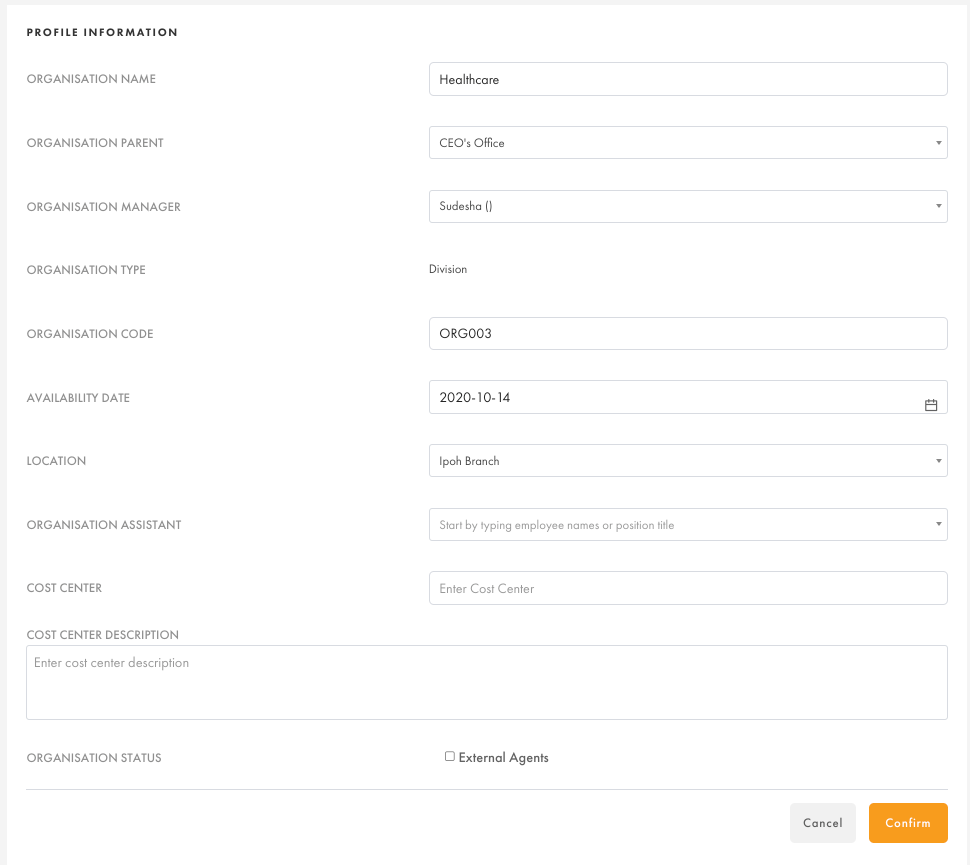
Update any of the following profile fields:
- Organisation Name
- Organisation Manager — admins may only select another member of this organisation
- Organisation Code
- Availability Date — the date the division/department/team was established
- Location — select from existing locations set up under Company > Offices
- Organisation Assistant
- Organisation Cost Center & Cost Center Description — allows the finance team to identify the cost centre for expenses submitted by employees in this organisation
- Organisation Status as External Agent
Select Confirm to save your changes
b) Move Organisation
- Select Move Organisation
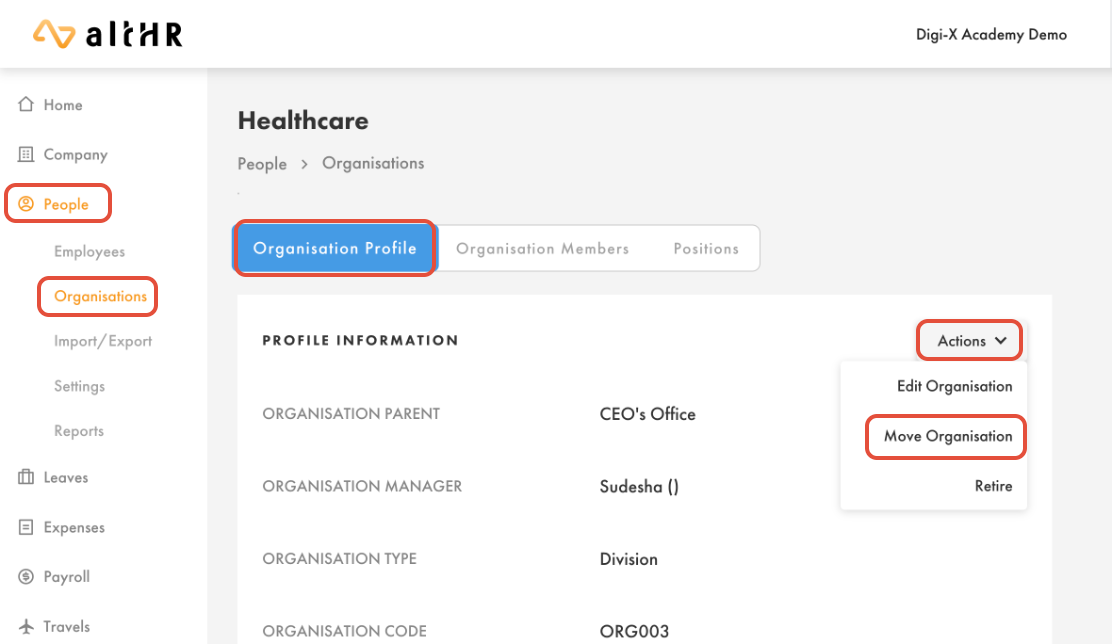
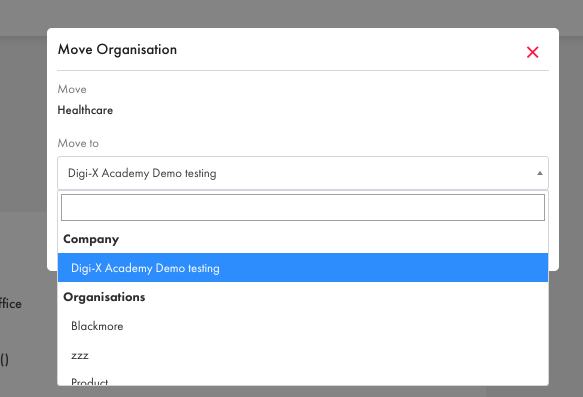
- Select the Parent Organisation you want to move this organisation under. It will be placed directly beneath the selected parent organisation.
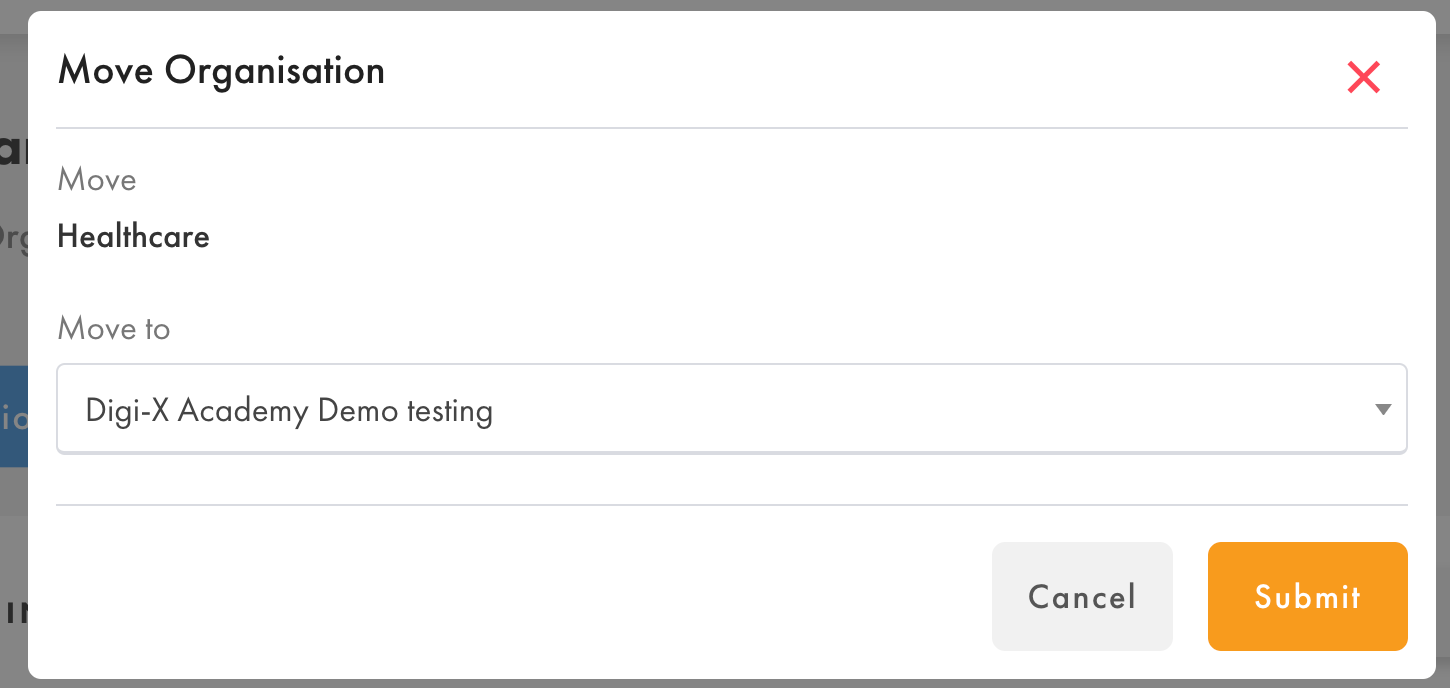
- Select Submit to confirm
c) Retire Organisation
Retiring an organisation removes it from the organisation chart.
- Select Retire
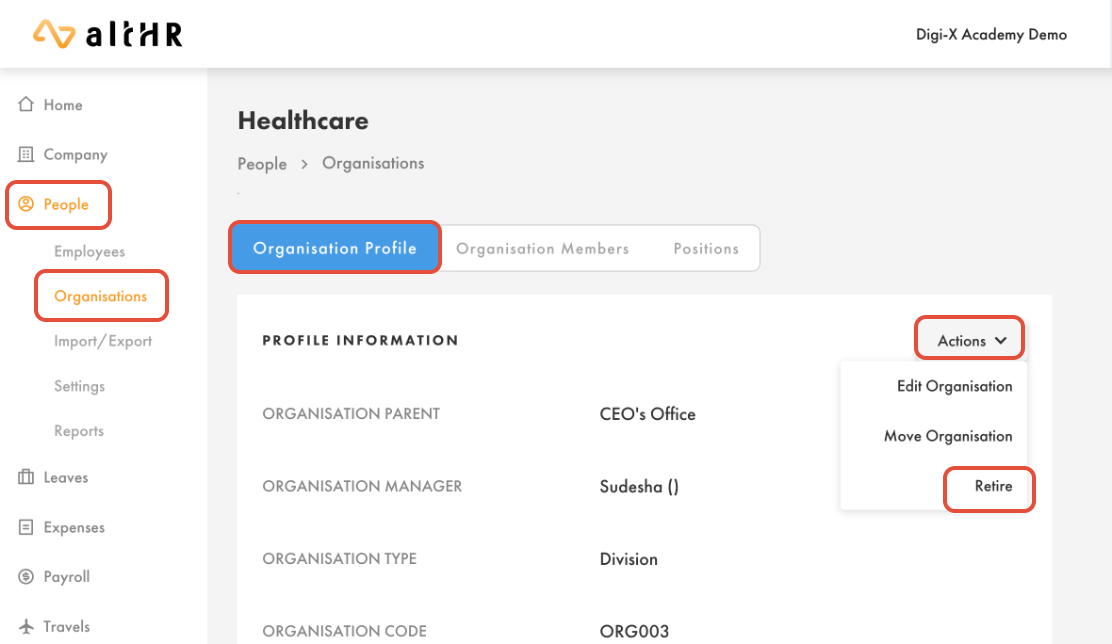
- Select Close Organisation to confirm
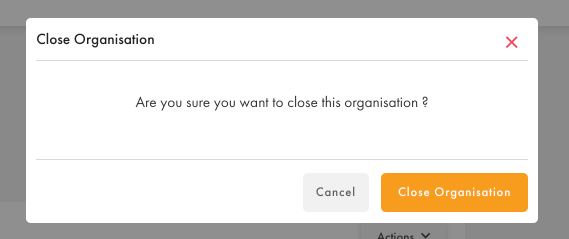
Note: As a safeguard, organisations with existing employees or Filled Positions cannot be retired. These employees must be moved to a different organisation first.

2. View Organisation Members
Admins can view all members within the organisation and access their individual Employee Profiles.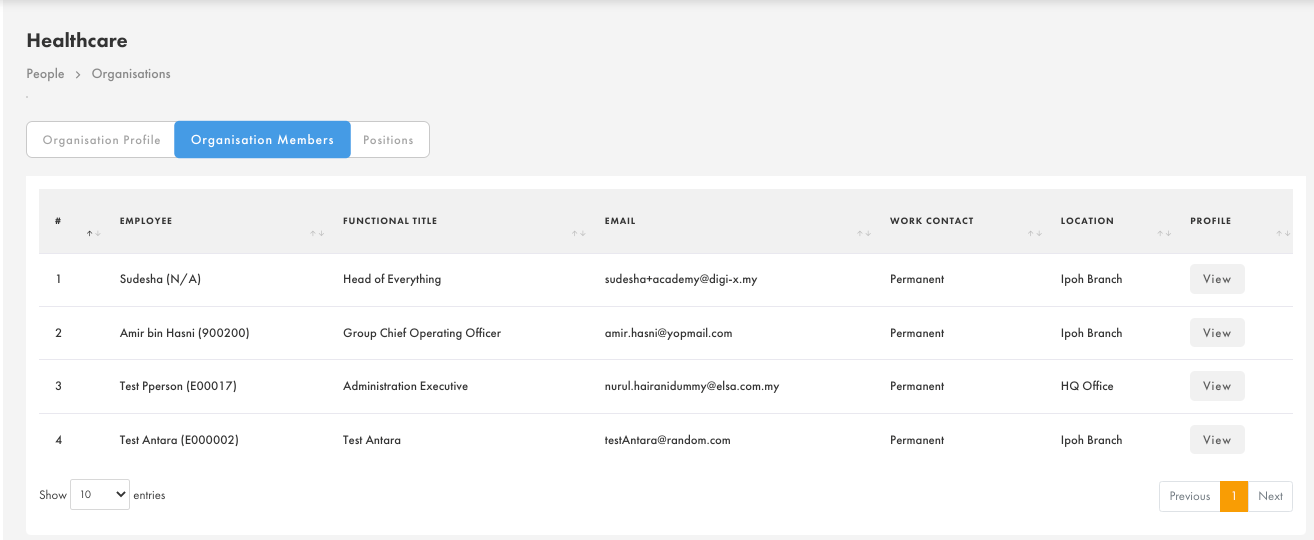
Related article: What are Positions? — learn how to create and manage Positions within an organisation.
Was this article helpful?
That’s Great!
Thank you for your feedback
Sorry! We couldn't be helpful
Thank you for your feedback
Feedback sent
We appreciate your effort and will try to fix the article