1. Purpose
This document provides step-by-step instructions for configuring Cross Company Approval Routing in altHR. It outlines the required setup within the People module and the activation process in the Expenses module to ensure that approval requests can be escalated across Grouped Companies.
2. When to Use This SOP
Use this configuration when:
- Employees in Company A must route leave or expense approvals to approvers in Company B, or
- Any company within a Grouped Companies structure requires cross-entity approval visibility.
3. Pre-Requisites Checklist
Before configuring, ensure the following:
| Requirement | Description |
|---|---|
| Grouped Companies configured | Confirm that companies are grouped under Organisation settings. |
| Approver profiles active | Approvers must have valid, active user profiles. |
| Access rights | Admin must have access to People > Settings and Expenses > Settings. |
| Routing logic finalised | HR should confirm the correct approval chain. |
Configure Cross Company Approval Routing in People Module
4. Steps to Set Up Cross Company Approval Routing
4.1 Access the Configuration Menu
- On your admin dashboard, go to the left panel.
- Click People > Settings.
- Select the Approval Routing tab.
- On the right section, click Create New.
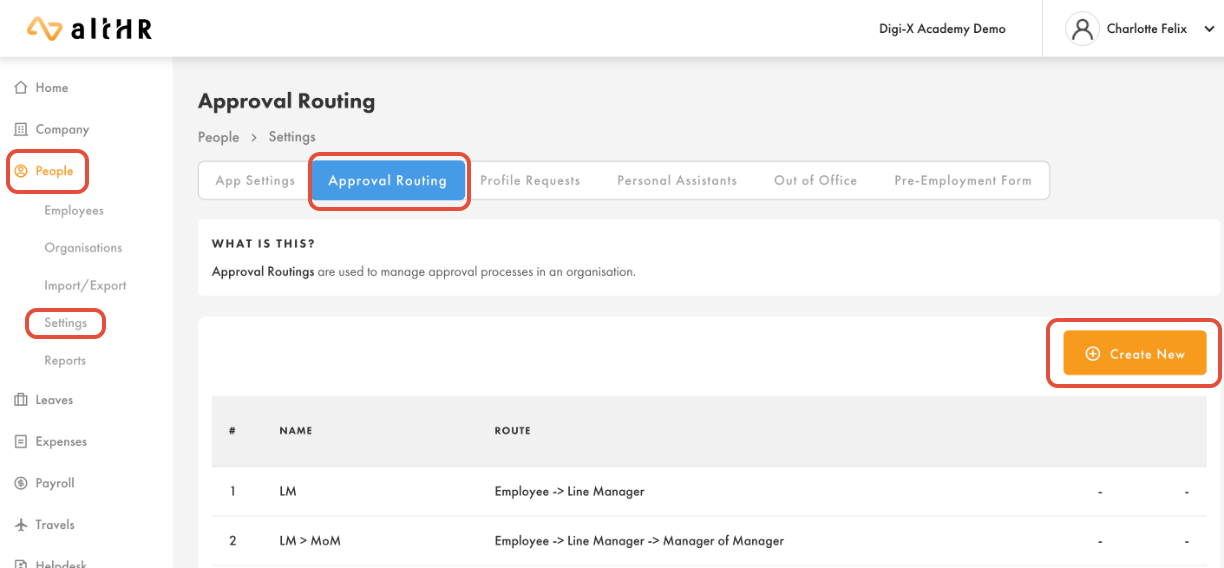
(Figure 1: Approval Routing Screen)
4.2 Enable Cross Company Approval Routing
- Toggle On Cross Company Approval Routing.
This enables you to choose approvers from other Grouped Companies.
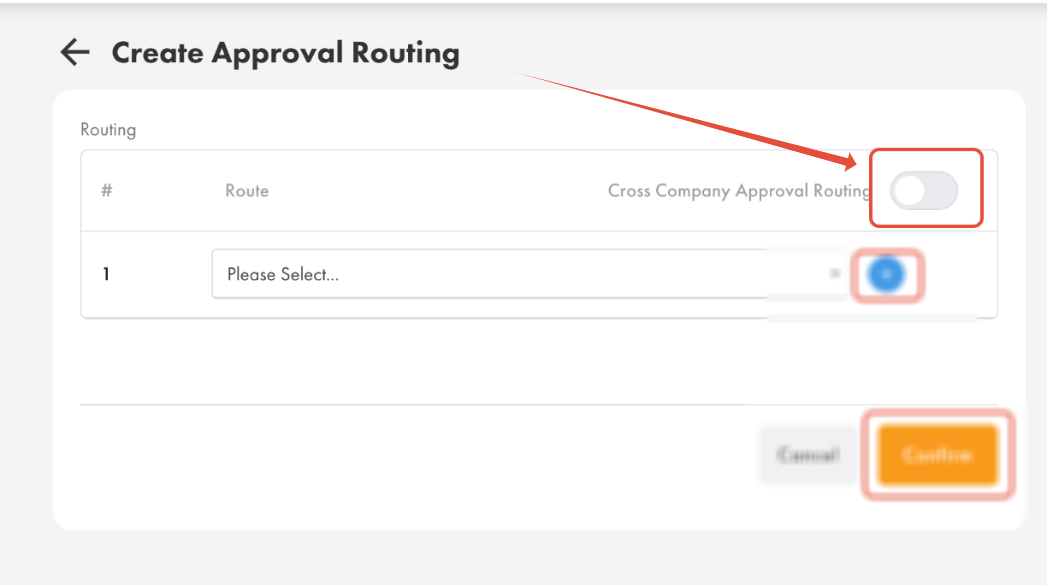
(Figure 2: Toggle On Cross Company Approval Routing)
4.3 Configure Approvers and Save the Approval Routing
- Select the first level approver for the employee or organisation.
Example: A personal assistant to a HOD or a specific employee’s name.
- Click the + button to add the next level approver.
- Select the second level approver, if required.
Example: Head of Department (HOD).
- You may configure up to 5 levels of approvers.
- Click Confirm to save the Cross Company Approval Routing.
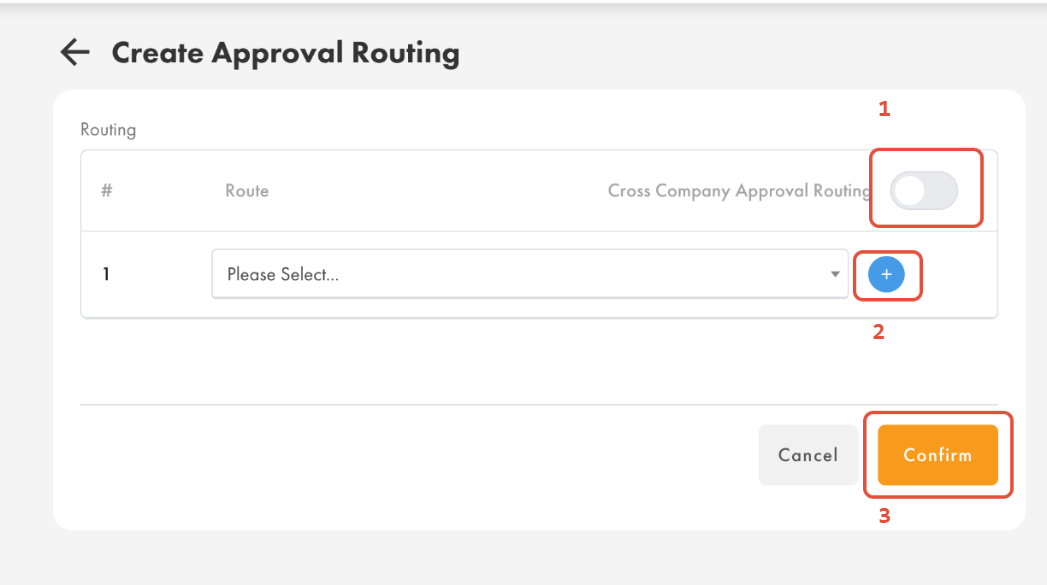
(Figure 3: Adding Multiple Levels of Approvers)
Activate Approval Routings in the Expenses Module
5. Steps to Activate Approval Routings for Expenses
5.1 Access the Expenses Approval Settings
On your admin dashboard, go to the left panel.
- Click Expenses > Settings.
- Select the Default Approval Routing tab.
- Click Create New Approval Routing.
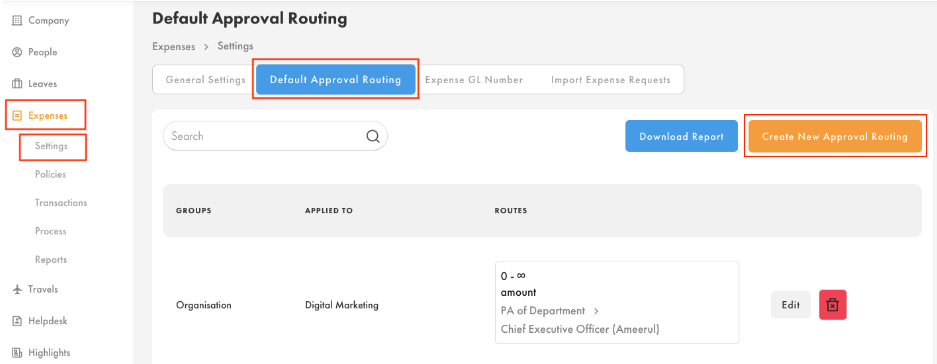
(Figure 5: Default Approval Routing Menu)
5.2 Assign Routing to Organisation / Employee
- Select the organisation or employee the approval routing will apply to.
- From the dropdown, select the approval routing created earlier in the People module.
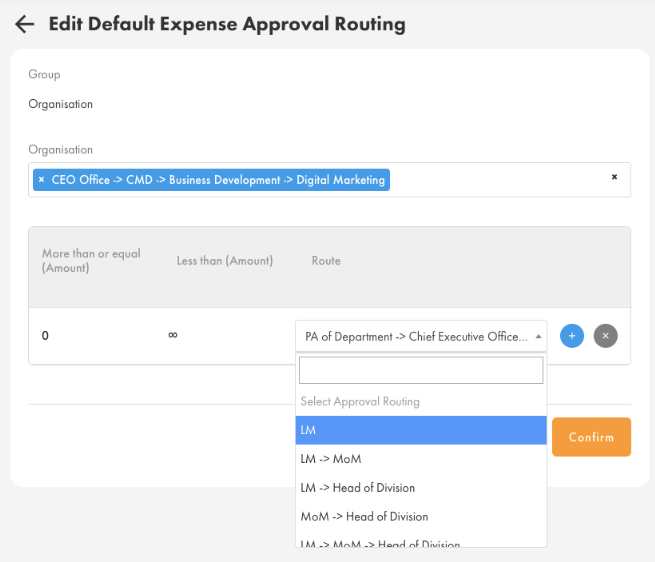
(Figure 6: Selecting Routing in Expenses Module)
5.3 Save the Routing
- Click Confirm to activate the routing.
6. Important Notes
- Cross Company Approval Routing only functions across Grouped Companies.
- Ensure all intended approvers have valid profiles and active assignments.
- Maximum: 5 approval levels.
- If routing is created but not applied to the relevant organisation/employee, approvals will not trigger as expected.
7. Common Errors & Troubleshooting
| Issue | Likely Cause | Resolution |
|---|---|---|
| Approver list does not show users from other companies | Cross Company toggle not activated | Ensure Toggle On Cross Company Approval Routing is switched on before insert the approver. |
| Approval not flowing to next level | Incorrect routing assignment | Reassign routing under Expenses > Settings. |
| Routing not triggered for specific employee | Routing not applied at organisational or employee level | Confirm assignment under Default Approval Routing. |
Was this article helpful?
That’s Great!
Thank you for your feedback
Sorry! We couldn't be helpful
Thank you for your feedback
Feedback sent
We appreciate your effort and will try to fix the article