What is Approval Routings
An approval routing is a way to have employee requests automatically routed to the appropriate managers for approval, for modules such as Leaves, Expenses and Travel.
For example, when an employee applies to take a leave, the company has to decide who needs to approve this leave request. Some company policies only require the direct managers to approve a request, while some require more than one approval level. This can all be set up digitally in altHR. Once set up, employees can conveniently check on their AltHR app if their requests for leaves or expenses have been approved and completed.
Applying approval routing employees involves 2 Steps
- Creating a General Approval Routing in People Module
- Creating a Default Approval Routing in Leaves, Expenses or Travel Modules
You might need to refer to Approval Routing in altHR first in order for you to proceed. When approval routings are created in the People module, they are not applied anywhere yet. All possible routings are just stored in a list here for you to select from when setting up default approval routings on each module separately, after which the feature will be applied and active.
To set a Default Approval Routing in Leaves Module:
A default approval routing is the "go-to" approval routing for a policy unless otherwise stated. Before creating the default approval routings, it must exist in the approval routings "bank" under the people module.
A default approval routing created for the leave module would mean that all leave policies will follow this routing unless otherwise specified. This applies to all modules that work with approval routings.
In the process of setting up a default approval routing, keep in mind to include special routings for certain individuals, organisations or job bands. For example, all leave requests of the management team of the company requires the approval an extra HR personnel, as opposed to the rest of the company, then this routing should be included in the set up of the default approval routings for leaves.
1. On your admin dashboard, head to the left panel.
2. Click Leaves > Settings.
3. Click on the Default Approval Routing tab.
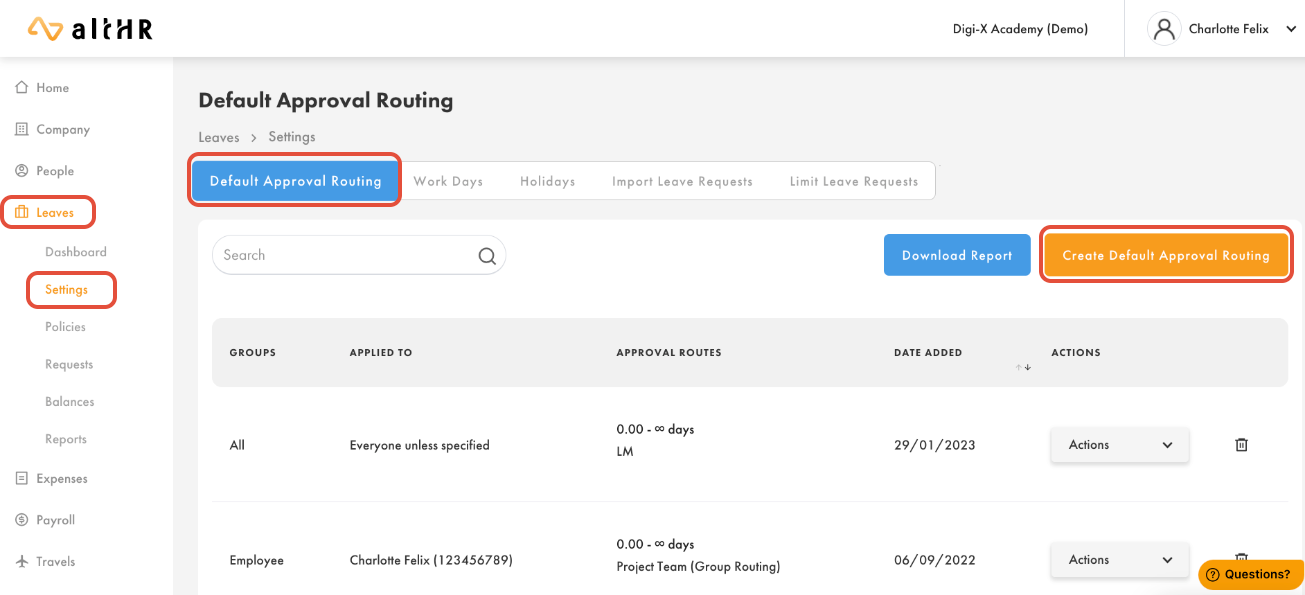
4. Click Create Default Approval Routing.
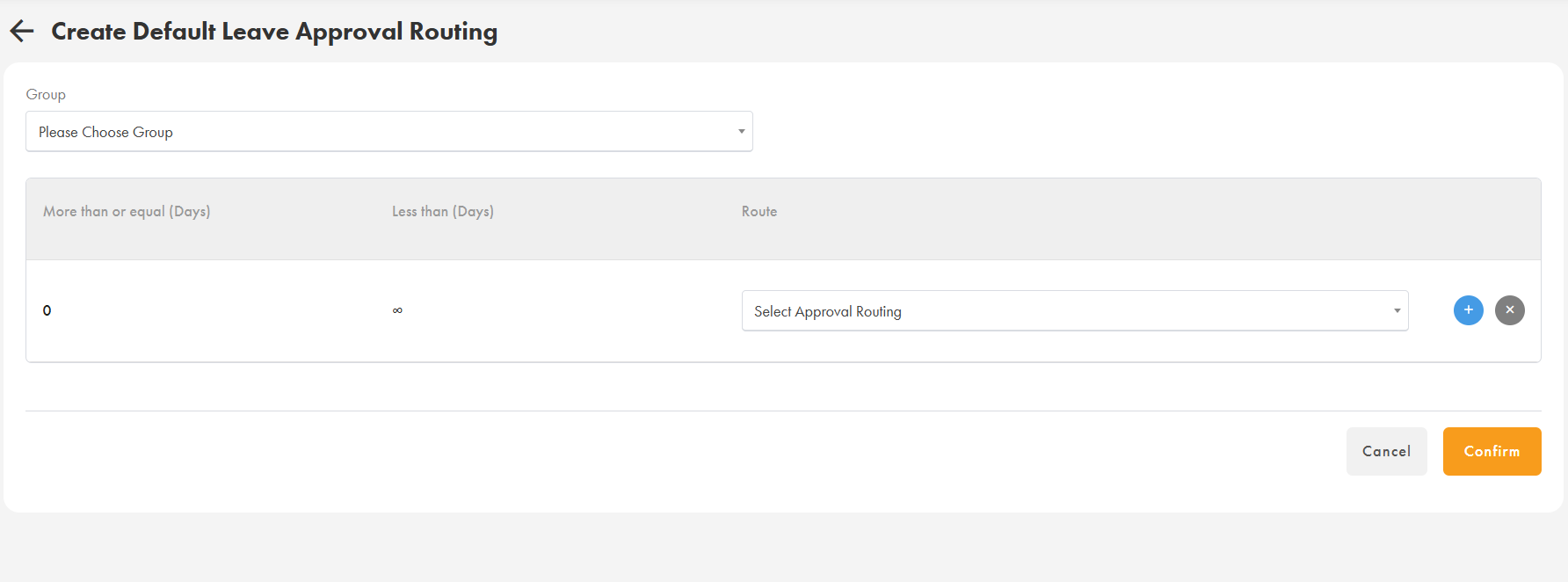
5. When creating a Default Approval Routing in Leave Module, the first step is to define which group of employees the routing should apply to. You may choose from the following options:
| Group Type | Description | When to Use | Key Notes |
|---|---|---|---|
| All Employees | Applies the selected approval routing to every employee in the company. | When the organisation enforces a single, standard approval workflow across all policies. | Simplest configuration. No segmentation required. |
| Organisation | Apply routing to one or multiple organisations (Division, Department, Section, Unit). | When different departments require different approval hierarchies. (e.g., Sales vs HR vs Finance) | Search by organisation name. Multiple organisations can be selected. |
| Employees | Apply routing to specific individuals only. | For exceptions such as C-suite, Directors, or employees without a Line Manager. | Multiple employees can be selected. Common for CEO, Acting Heads, or special cases. |
| Job Band | Apply routing based on job grades or levels. | When approval varies by seniority. (e.g., Management-level employees need CEO approval) | Supports selection of multiple job bands. Works well for structured grading frameworks. |
6. Select the Approval Routings Required
From the approved list of General Approval Routings (created earlier under People > Settings), choose the routing you want to apply to the selected group.
If your company has different approval requirements depending on the number of days applied, you can configure tiered routing by clicking the “+” button to add additional rules.
7. Setting Conditional Routing Based on Number of Days
You may define routing rules based on the duration of the leave request.
Example configuration:
Rule 1:
< 5 days → LM
Any leave request fewer than 5 days will follow the Line Manager approval routing.Rule 2:
≥ 5 days → LM → HR
Longer leave requests (5 days or more) will escalate to an additional approver.
This enables differentiated approval flows without creating multiple policies or manual interventions.
Finalising the Approval Routing
8. Click “Confirm” to Save
How to Apply Additional Approval Routing to Leave Policy
When configuring individual policies, there is an option to apply the default approval routing or not. In the instance where a leave policy does not follow the default approval routing, then the admin may create a custom routing. This is done via Leaves > Policies > Select Policy > Edit > Scroll down to Section 4
Admins will be required to create an Additional Approval Routing that 'Applies to All' before they can add another Additional Approval Routing that is more Specific.

Select Add Approval Routing and set up the approval routing as needed.

Was this article helpful?
That’s Great!
Thank you for your feedback
Sorry! We couldn't be helpful
Thank you for your feedback
Feedback sent
We appreciate your effort and will try to fix the article